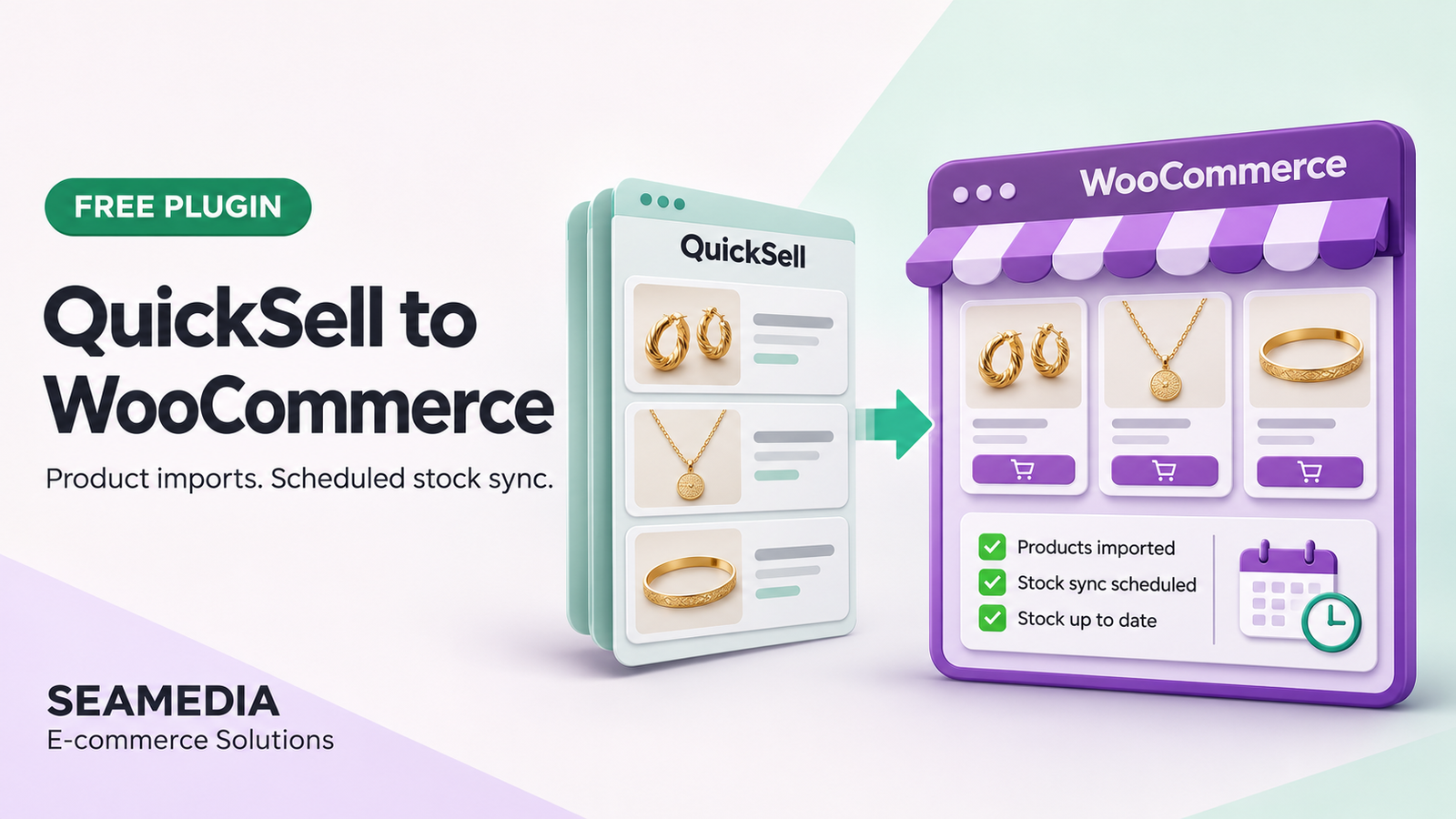
If your business manages product catalogues in QuickSell and sells through WooCommerce, keeping both systems updated can become a recurring task. New products need to be added to the website, prices change, and stock quantities need regular attention.Copying that information manually becomes harder as your catalogue grows. A product may be updated in QuickSell while its WooCommerce listing still shows an older price or stock quantity. Meanwhile, repeating a full import can create another concern: what happens to the descriptions, images, and other content your team has already improved?We developed Seamedia QuickSell for WooCommerce to address this workflow. The plugin imports products from QuickSell, updates supported commercial information, and provides a separate stock-only sync with scheduling across multiple catalogues.We are making the plugin available as a free download for businesses that need this connection.
This guide covers version 1.3.1. Seamedia develops and publishes the plugin; it is an independent connector, not an official QuickSell or WooCommerce release.
What Does the QuickSell WooCommerce Plugin Do?
The plugin connects your QuickSell account to WooCommerce using a QuickSell API key. From the WordPress administration screen, you can load catalogues, preview product information, configure field mappings, and start a sync.
It supports three distinct tasks:
| Task | What happens | When to use it |
|---|---|---|
| Import new products | Creates WooCommerce products using the configured source fields | Adding a QuickSell catalogue to your website |
| Update existing products | Refreshes SKU and enabled stock and price fields while preserving existing content | Maintaining commercial information after the initial import |
| Stock-only sync | Updates inventory for existing linked products and variations | Refreshing stock without changing prices or product content |
The connection works from QuickSell to WooCommerce. This version does not send WooCommerce orders, customers, or product edits back to QuickSell.
Why We Built a Separate Stock Sync
A product’s content and its inventory often need different update schedules.
Your team might improve a description once, review prices periodically, and need stock updates several times a day. Running every field through the same update process does not always suit that workflow.
The plugin therefore separates product imports from stock-only updates.
You can use the normal import process to add products and maintain supported commercial fields. Once the products are linked, you can configure stock sync independently.
For example, a jewellery business might maintain separate QuickSell catalogues for necklaces, earrings, bangles, and bracelets. It can select those catalogues for a scheduled stock run while continuing to manage the website’s product copy and images in WooCommerce.
This example describes a supported workflow, rather than a claim about a particular business’s results.
Import Products With Configurable Field Mapping
Businesses do not always store product information in the same way. A useful connector needs to make those differences visible before importing.
The plugin includes field mapping for supported WooCommerce fields, including:
- Product name, description, and short description
- SKU, regular price, sale price, and stock quantity
- Images and galleries
- Weight and dimensions
- Categories and tags
Supported QuickSell custom fields can also be used as mapping sources.
The preview helps you inspect the available information and mapped values before starting an import. This is particularly useful when checking stock sources, discount fields, image URLs, or custom field names.
Mapping a field does not change the plugin’s update policy. Content fields initialize new products; existing product content remains preserved.
Review New Products Before Publishing
New products default to draft.
That gives your team an opportunity to check descriptions, images, variation options, prices, and categories before making the listings visible to customers.
The plugin does not convert currencies. For product imports, the configured QuickSell catalogue currency must match the WooCommerce store currency. Tax treatment and measurement units also need to be checked during setup.
Preserve the Product Content Your Team Has Improved
A connector should fit the way a store develops after launch.
An imported product may begin with a basic supplier name and a short description. Your team may later replace that information with a clearer title, a detailed description, better photography, and supporting SEO content.
The plugin uses different rules for new and existing products:
| Information | New product import | Existing product update | Stock-only sync |
|---|---|---|---|
| Name and descriptions | Imports configured content | Preserves existing content | Preserves existing content |
| SKU | Imports when supplied | Updates when supplied | Preserves existing SKU |
| Regular and sale prices | Imports when enabled | Updates when enabled | Preserves existing prices |
| Stock | Imports when enabled and supplied | Updates when enabled and supplied | Updates supplied quantities |
| Images | Imports when enabled | Preserves existing images | Preserves existing images |
| Product creation | Creates new products | Reuses matched products | Does not create products |
This approach supports stores that improve their listings manually or through a separate AI content tool.
AI content generation is not included in this connector. Its role is to preserve that editorial work during subsequent supported updates.
Match Existing Products Without Creating Unnecessary Copies
The connector stores QuickSell product identities separately from WooCommerce SKUs.
Normal product imports first look for an existing QuickSell link. Optional SKU matching can also reuse a compatible existing WooCommerce product.
When SKU matching is enabled, adopting an existing same-SKU product can replace its previous QuickSell link. That makes it useful when establishing or correcting a connection, but it should be tested against a small catalogue first.
Stock-only sync follows a narrower rule: it updates products already linked through their QuickSell identities. It does not adopt unlinked products by SKU or create new products.
Conflicting identities, incompatible product types, and variation mapping differences require review.
Schedule Stock Updates Across Multiple Catalogues
The Stock sync tab lets you select multiple catalogues under one stock schedule.
You can choose catalogues individually or use Select all listed catalogues, then save the selection.
Three scheduling options are available:
| Schedule | How it works |
|---|---|
| Manual only | Run stock sync when needed |
| Daily at a chosen time | Start a stock run at a selected time in the WordPress site timezone |
| Repeat at an interval | Start stock runs at a configured interval of at least 15 minutes |
Each run captures the saved catalogue selection and processes it one catalogue at a time.
The progress screen shows the current catalogue position and combined processing counts. Changing the saved selection later does not alter a run already in progress.
Scheduled stock work waits while a product import is running.
Scheduled Sync Is Different From Real-Time Inventory
This plugin uses scheduled processing, rather than an instant stock push whenever QuickSell changes.
There will be a gap between a source stock change and its next successful WooCommerce update. Choose an interval that suits your operation, and account for the time needed to process all selected catalogues.
WordPress cron also depends on site activity and may execute tasks after their scheduled time. For more dependable execution, configure your hosting environment to trigger WordPress cron regularly. WordPress explains how WP-Cron scheduling works.
A daily time is the intended start time, rather than a guarantee that the entire catalogue will finish at that moment.
Understand What Happens to Missing Stock
Inventory updates need clear rules.
When QuickSell supplies a valid quantity of zero, the plugin applies it as out of stock. When the stock value is missing or unavailable, the plugin retains the existing quantity and reports the skipped item.
A product missing from a selected catalogue is not automatically deleted or set to zero.
For supplied quantities, the connector enables stock management and disables backorders. Check that this policy fits your store before enabling scheduled updates.
Variations are supported, but their existing QuickSell mappings must match the source structure. Stock sync does not create or restructure variations.
Monitor Progress and Investigate Errors
Automation still needs an understandable result.
The Sync & progress screen displays processed records, created and updated products, errors, pending images, and request activity. Stock runs also report skipped items.
For multiple catalogues, it shows which catalogue is being processed. Report rows include source catalogue IDs so your team can identify where an item came from.
The plugin also provides saved progress and resume controls for interrupted or failed work.
Use the report alongside WooCommerce → Status → Logs → seamedia-quicksell when investigating a failure. A completed run with errors still needs review; completion alone does not mean every record was updated successfully.
How to Set Up the Plugin
A small first import makes the configuration easier to verify.
- Install the plugin. Upload the ZIP through WordPress and activate it with WooCommerce enabled.
- Connect QuickSell. Open WooCommerce → Seamedia QuickSell, enter your API key, and load the available catalogues.
- Review import settings. Confirm currency, field mappings, SKU matching, and draft visibility.
- Preview and import a small catalogue. Check actual products, variation links, prices, and images in WooCommerce.
- Configure stock sync. Select the catalogues, choose a schedule, and save it.
- Run a manual stock test. Confirm the quantities and review skipped items before relying on scheduled execution.
The plugin requires WordPress 6.4 or later, PHP 7.4 or later, active WooCommerce, and the necessary QuickSell API access.
Frequently Asked Questions
Is the QuickSell WooCommerce plugin free?
Yes. Seamedia is making the plugin available as a free download. WordPress hosting and any QuickSell account or API charges remain separate.
Can I sync stock from several QuickSell catalogues?
Yes. Version 1.3.1 supports multiple catalogue selections for manual and scheduled stock runs. The catalogues are processed sequentially.
Will it overwrite my improved product descriptions?
Existing product names and descriptions are preserved during normal updates. Stock-only sync also preserves prices, SKUs, images, and content.
Can it update stock every hour?
Yes. Choose Repeat at an interval and enter 60 minutes. Actual execution depends on cron availability and processing time.
Does stock sync create products that are missing from WooCommerce?
No. Stock-only sync skips unlinked products. Use the normal product import process to create and link them first.
Does it export WooCommerce orders to QuickSell?
No. Order export is not included in this version.
Download Seamedia QuickSell for WooCommerce
If you already use QuickSell for product catalogues and WooCommerce for online sales, this plugin provides a practical way to connect the two workflows.
Import your products, review the results, preserve your improved content, and schedule inventory updates across your selected catalogues.